
By Sam Barkley, Ads Guyana
You can prepare a physical-item advertisement on Ads Guyana (Ads GY) by talking through the details instead of starting with every form field. Easy Chat Listing opens beside the ordinary posting form. It helps organise what you tell it, while you remain responsible for checking the finished listing. This guide explains the chat, photo controls and final submission without treating an AI reply as a published advertisement.
Open the posting page and sign in
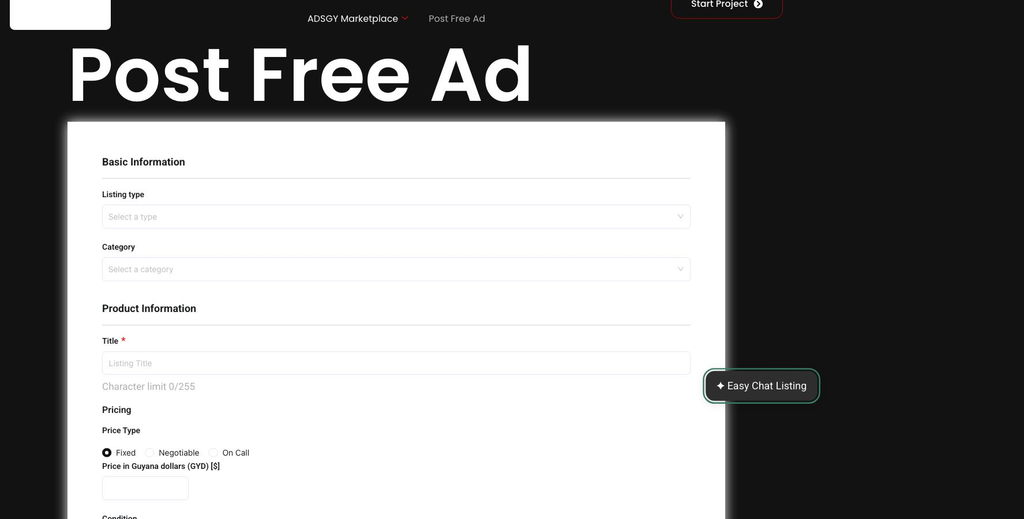
Visit Post Free Ad and select Easy Chat Listing. The regular listing form stays available, so opening the assistant does not require you to abandon that option. If you are signed out, follow the sign-in or registration instructions before creating a listing through chat.
Read Before we chat before sending a message. The current chat is for adults aged 18 or older using it from Guyana. Chat text is processed by Google’s AI service, and the free service may use submitted content for product improvement. Do not type passwords, payment details, identity documents or private contact information into the conversation.
Describe the actual item
Start with what you are selling and the facts you already know. You can provide several details together; there is no need to send a separate message for every field. For example: “Used Samsung Galaxy A14, 64GB, charger included, small scratch on the back, Georgetown, GYD 27,500 fixed. Title: Used Samsung Galaxy A14 64GB.” This is an example, not an item advertised for sale.
Use the actual model, condition and amount for your item. Explain defects honestly. The assistant can ask for missing necessary information, but it cannot establish that an item works or check a specification you have not supplied. If its category or location choice is wrong, correct it before proceeding.
Send messages and make corrections
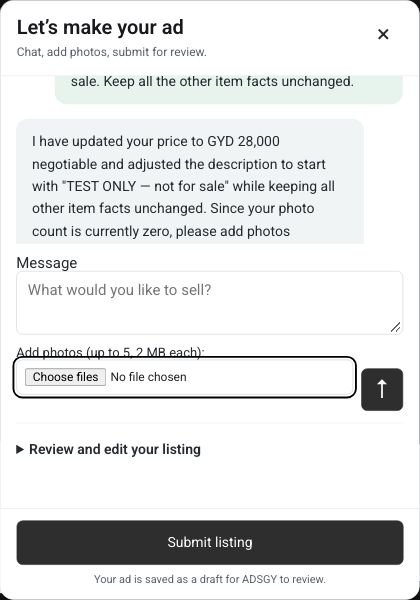
Use the send arrow or press Enter to send your message. Shift plus Enter adds a new line. Wait for the response before changing the review details. A correction can be direct: “Change the price to GYD 28,000 negotiable. Keep the location as Georgetown.” Check that the displayed fields reflect the change.
Closing the popup preserves entered details during the current page session. That is useful if you want to look at the ordinary form, but it is not a promise that every unsent message or selected photo survives a page refresh. Finish your review before leaving the page.
Add photos inside the chat
Attach photographs of the actual item. The current assistant accepts up to five photos, with a maximum of 2 MB each; follow the limits displayed in your panel if they change. Use accepted JPG, PNG or WebP files. Remove a selected image if it is wrong, and use Use as main to put your preferred photo first.
The assistant does not analyse your pictures. Explain any damage, missing part or important detail in words. Photos remain selected on your device until you submit the draft. Uploaded WordPress image URLs should not be treated as private storage, so keep sensitive information out of photographs.
Review the fields and contact details
Open Review and edit your listing. Check the title, factual description, condition, category, location and price in Guyana dollars. Choose the appropriate pricing option, including On call if you are not displaying an amount. Complete any additional required fields shown by the posting form.
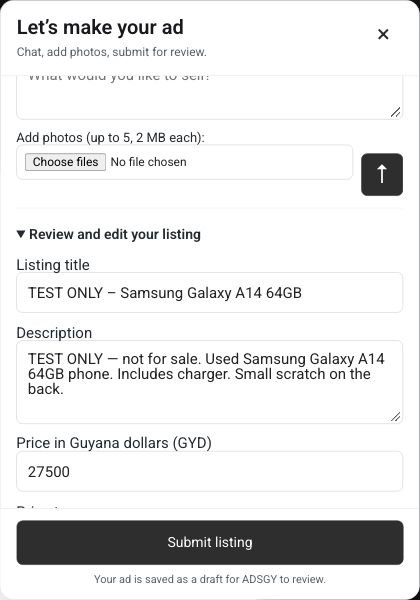
Add contact information only in the separate contact fields, not in chat. Check the marketplace terms before accepting them. If a message is still sitting unsent in the composer, send it first; Submit listing does not silently include unfinished chat text.
Submit for owner review
Select Submit listing when the details are complete. Missing required information returns you to review. A successful submission creates a draft for Ads Guyana owner review; it does not automatically make the advertisement public. Read the confirmation rather than assuming that a friendly AI response means the listing was saved.
Frequently asked questions
Can I use chat for rentals or jobs?
Use the regular posting form for property, rentals, jobs and services. The current assistant supports physical-item sales.
What if the AI service is busy?
Check which details remain in review and use the regular form if needed. A failed chat response is not a successful submission.
Ready to prepare your ad? Open Post Free Ad or read the regular Ads Guyana posting guide.
More Easy Chat Listing guides: How to Correct Your Ad in Easy Chat Listing · Set clear GYD prices and Guyana locations with Easy Chat Listing · What happens after Submit listing? Draft review and published ads
2 Responses