
By Sam Barkley, Ads Guyana
You might notice a wrong price, remember an accessory or want a clearer title. Ads Guyana (Ads GY)’s Easy Chat Listing lets you explain those changes in conversation and inspect the organised fields before submission. Check that the correction reached the listing review, rather than relying only on the assistant’s reply.
Begin with a clear correction
State the field you want changed and the replacement fact. “Change the price to GYD 28,000 negotiable” is clearer than “make it a little higher.” “Use Georgetown as the location” is clearer than a place reference the assistant might misunderstand. You can also say which information should remain unchanged.
For an illustrative phone listing, a message might be: “Keep the title Used Samsung Galaxy A14 64GB. Change the asking price to GYD 28,000 negotiable. Add that the charger is included.” Use your item’s actual information. A correction should not introduce a claim about specifications, condition or accessories unless you know it is accurate.
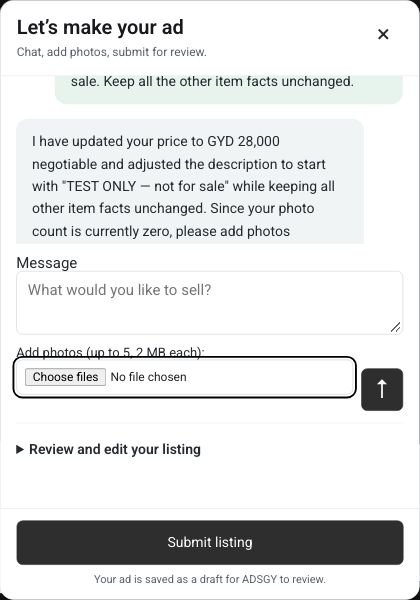
Send the message before expecting a change
The arrow sends your chat message. Enter also sends; Shift plus Enter creates a new line. Text left in the message box has not been accepted into the listing state. After sending, wait for the response and check the structured fields before making another correction.
Submit listing does not silently process unfinished text. If you have typed a correction but not sent it, the panel asks you to send it first. This protects against submitting the older price or description while assuming that your last sentence was included. Clear unwanted text rather than leaving an ambiguous instruction in the composer.
Check the title and factual description separately
The title should identify the item. The description should explain condition, included accessories, known faults and relevant collection or delivery arrangements. Read both after a correction. A conversational instruction such as “change this for me” does not belong in the advertisement, and a long paragraph of item facts should not become the entire title.
If you discover a fault, add it plainly. “Small scratch on the back” is more useful than “good condition” on its own. If an accessory is no longer included, remove that claim from the description and check the photos too. A picture of a charger can confuse buyers if the updated advertisement excludes it.
Use the review for precise edits
Open Review and edit your listing to inspect the title, description, GYD amount, price type, condition, category and location. You can make direct edits there when a field needs a precise value. Check required additional fields as well: the assistant’s conversational reply is not a substitute for completing the actual posting requirements.
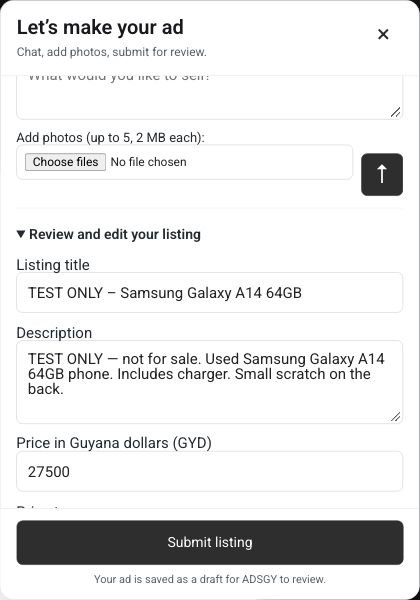
Choose Fixed, Negotiable or On call as appropriate. If you display an amount, enter the asking price in Guyana dollars. Check that the selected category fits the physical item and that the location is where the relevant collection or sale takes place. Do not choose an unrelated category just to complete the form.
Keep contacts out of the conversation
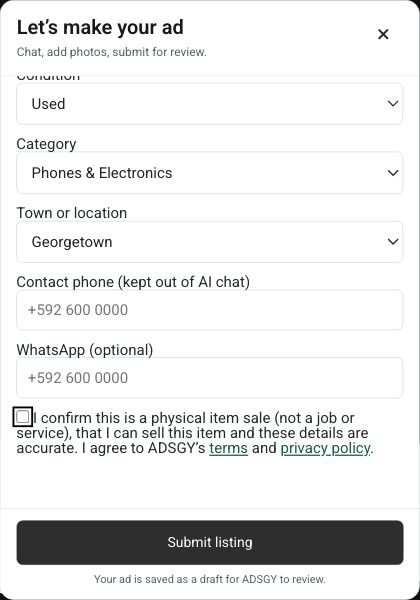
Use the separate contact inputs in review for your phone and optional WhatsApp details. An email field appears only if the native posting form requires or provides one; complete it as instructed. Do not assume an account email is automatically being used as the listing contact.
Before chatting, read and accept the AI notice. The current assistant is for adults aged 18 or older using it from Guyana. Google processes chat text, and the free service may use that content for product improvement. Keep passwords, identity information and private contact details out of messages and photographs.
Review photos and terms before Submit listing
Check that the selected images still match the corrected description. Remove unwanted selections and use Use as main if another image should appear first. The current assistant allows up to five photos of 2 MB each; follow its displayed limits. It does not analyse images, so explain defects yourself.
Accept the marketplace terms after reviewing them, then select Submit listing. Missing required information opens review and directs you to the relevant control. A successful submission creates a draft for Ads Guyana (Ads GY) owner review. The assistant cannot publish the advertisement automatically, and a chat reply saying the details are prepared is not the final save confirmation.
Frequently asked questions
What if the AI reply fails after I send a correction?
Check the review before assuming the correction was accepted. Previously accepted details may remain, while the attempted message was not processed. Use the regular form if necessary.
Can I correct a rental or service listing in this chat?
The current assistant supports physical-item sales. Use the regular form for property, rentals, jobs and services.
Open Post Free Ad to prepare your listing, or review the regular Ads Guyana posting instructions.
More Easy Chat Listing guides: Post a Free Ad in Guyana with Easy Chat Listing · Easy Chat Listing or the Regular Ads Guyana Form? · How to Add Photos in Ads Guyana Easy Chat Listing