By Sam Barkley, Ads Guyana
Useful listing photographs show buyers the actual item and help explain its condition. Ads Guyana (Ads GY)’s Easy Chat Listing includes photo attachments inside its popup, so you can prepare images alongside the conversation. Selecting pictures is one part of preparing your ad: you still need to describe the item, review the fields and submit the draft before owner review can begin.
Photograph what you are actually selling
Use your own current photographs of the item. Choose a clear background and enough light to show surfaces, edges and details. Avoid hiding scratches with filters or photographing only the least worn side. If a photograph shows several objects, make clear which ones are included in the sale.
For a phone, useful views might show the front, back, edges and included charger. For furniture, show the full piece, its surface and any damaged areas. These are suggestions, not required promises about every item. Choose views that answer the questions a buyer is likely to ask about your particular product.
Remove sensitive information before selecting images
Look at the background as well as the item. Keep identity documents, payment information, passwords, personal messages and other private details out of pictures. A phone screen or a label can reveal information you did not intend to advertise. Retake or safely crop the photograph before attaching it.
Photos are not deliberately included in the AI conversation for analysis. However, submitted pictures are uploaded to WordPress, where an image URL can be publicly addressable even when the listing is a draft. Do not use the photo area as private document storage or attach information intended only for the site owner.
Follow the limits shown inside chat
Open Post Free Ad, sign in and select Easy Chat Listing. The current assistant accepts up to five photos, with each file no larger than 2 MB. Accepted formats are JPG, PNG and WebP. Follow the limits displayed in the popup if the website’s configuration changes.
Both current posting routes allow five images of up to 2 MB each. Follow the limit displayed in your chosen route if the configuration changes. If a file is too large, create a smaller copy using a suitable image editor and keep the original. Check that the reduced image still shows the condition clearly and that its extension matches its actual format.
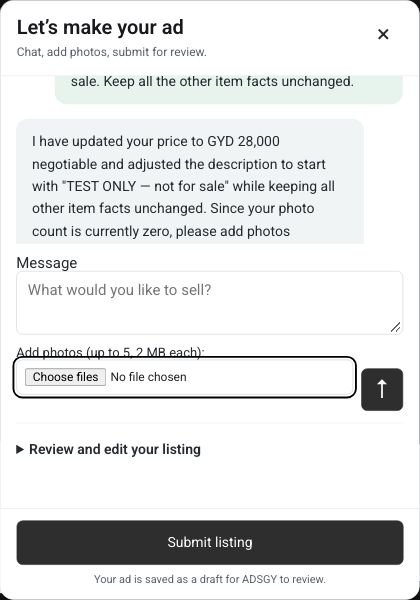
Add the selection you intend to use
Use the photo chooser inside chat and select your images. Review the thumbnails and filenames rather than assuming the correct files were chosen. If the control is still loading its limits, wait before selecting photos. Unsupported formats, oversized files or too many images need to be corrected before submission.
A new picker selection replaces the current photo selection. It does not simply add another batch to the previous one. If you want to keep an existing image while selecting more, include it in your new selection. This is especially important when choosing images from different folders or reviewing an older photograph alongside a newer one.
Remove an image or choose the main photo
Select Remove beneath an unwanted photo. Check the remaining thumbnails before continuing. This lets you exclude a duplicate, a blurred view or a picture of an object that is not included. Removing a selected image from the panel means it should not be part of the draft you are preparing.
Use Use as main on the photograph you want first. A clear overall view is often a useful lead image; a close-up of a fault can follow it. The main-photo control changes the selection order. Review that order before submitting, rather than assuming that the original order from your device is still in use.
Describe details the photos cannot establish
The assistant does not analyse photos. It cannot verify a model, identify damage, count included accessories or confirm whether the item works from your pictures. Put those facts into a sent message or the listing review. For example, say that the charger is included and that the back has a scratch; do not rely on a thumbnail to communicate those facts.
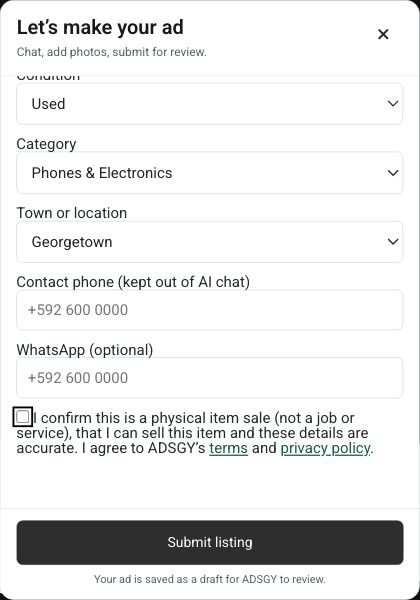
Photos stay selected locally until the final submission. Complete the title, description, GYD price or On call option, condition, category and location; add separate contact details and accept the terms. Wait for the successful draft confirmation. Selecting a photo or receiving a chat response alone does not upload a complete listing.
Frequently asked questions
Does chat automatically write from my photographs?
No. Supply the important facts in words and check the final review yourself.
Can I change photos after closing the popup?
You can reopen it during the current page session and review the selection. Do not assume selected files survive refreshing or leaving the page.
For more preparation advice, read the Ads Guyana posting guide, then prepare your item ad.
More Easy Chat Listing guides: How to Correct Your Ad in Easy Chat Listing · Set clear GYD prices and Guyana locations with Easy Chat Listing · What happens after Submit listing? Draft review and published ads
One Response